%20-%20DONKERGROEN%20(2).png)
.jpg)
How do I connect the Balboa CMS?
With the Balboa ControlMySpa Wifi module, you can easily control your hot tub remotely via an app on your smartphone or tablet. Here's how to connect it.
With the Balboa ControlMySpa Wifi module, you can easily control your hot tub remotely via an app on your smartphone or tablet. Whether you're at home or on the go, you're always in complete control. So your hot tub is at the right temperature when you want to relax.
1. What's in the box?
- Internet cable for modem
- Splitter for the Balboa pack
- Hot tub cabinet
- Home cabinet
- Adapters for electrical outlets abroad.
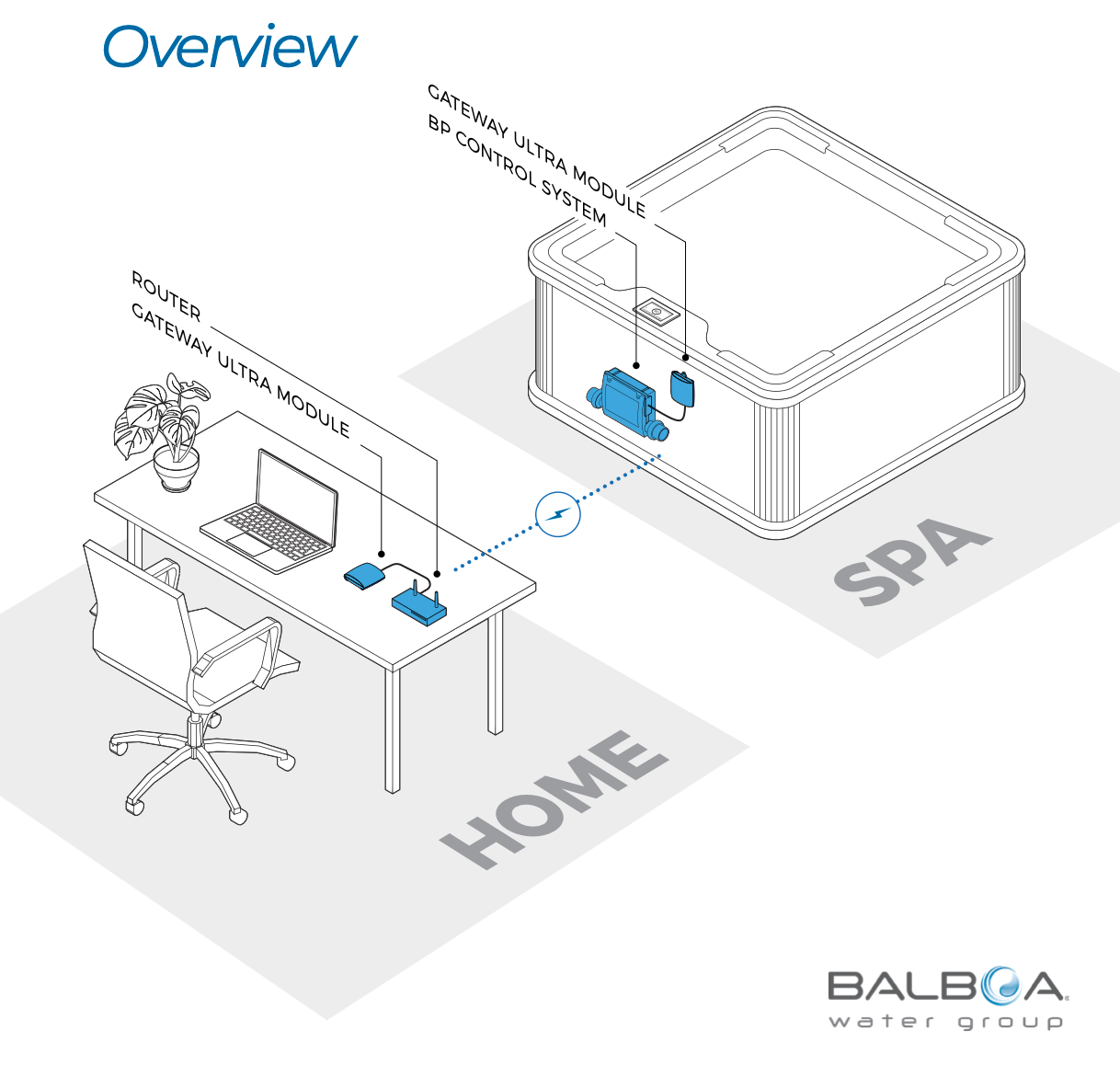
2. Place the system on the hot tub
Step 1. Turn off power
Make sure the hot tub is completely off the power before you begin.
This prevents damage and is important for your safety.
Step 2: Open access to the hot tub
- Look in the tub for the two grey suction pipes and remove a number of wooden slats in between.
- Find the Balboa heating system control box
Step 3. Open the control cabinet
- Unscrew the screws
- Open the case carefully
- You now see the circuit board (PCB)

Step 4. Connect the cable to the circuit board
- Find the right connection (see image)
- Connect the supplied cable to the appropriate port
- Make sure the plug is secure

Step 5. Guide the cable properly
- Guide the cable out through the appropriate opening
- Make sure the cable does not get stuck when closing
- Screw on the appropriate cap
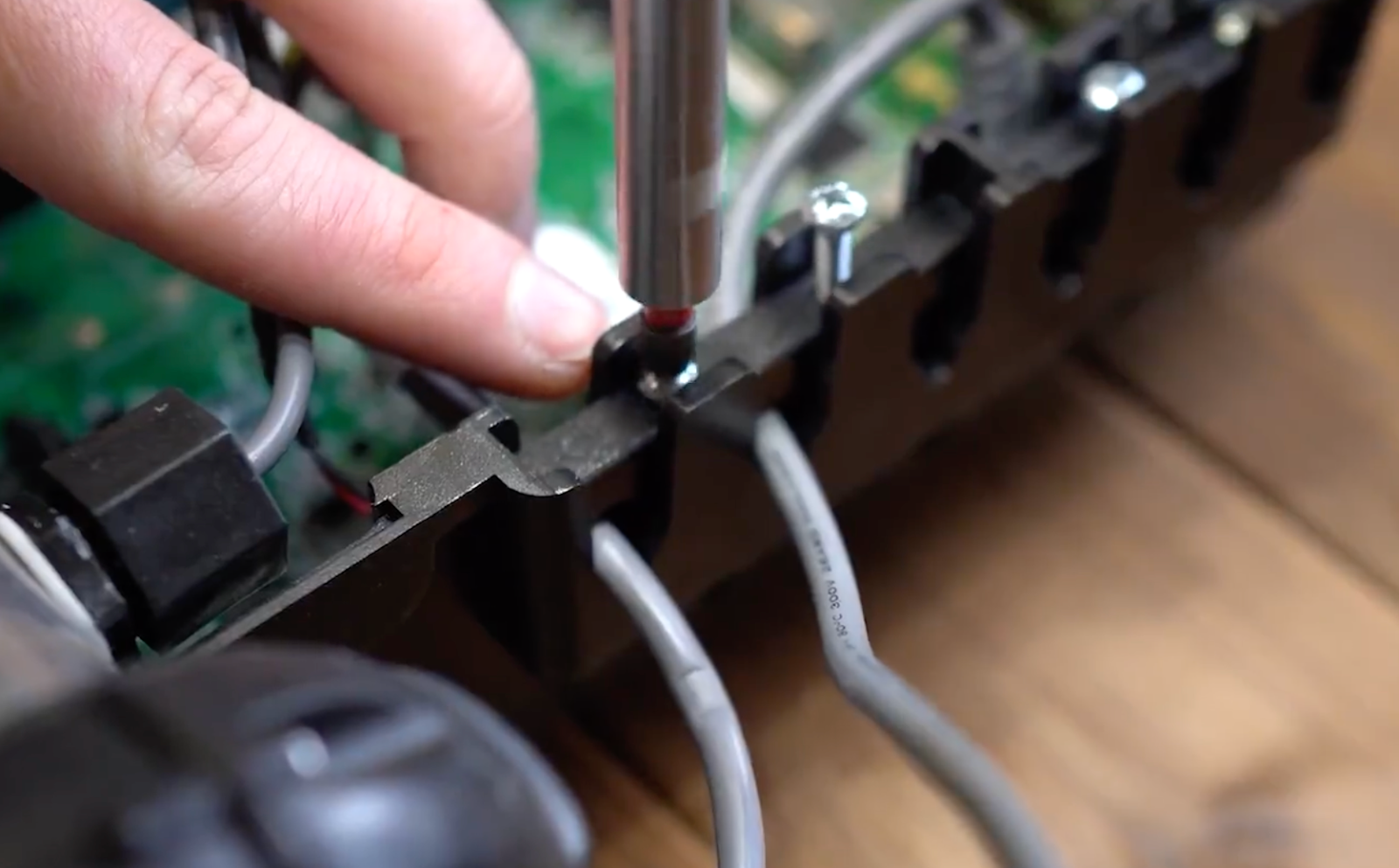
Step 6. Close the enclosure
- Put the cover back on the control box
- Screw everything back on firmly
Step 7. Install the WiFi module
- Place the GATEWAY Ultra/WiFi module in the hot tub enclosure
- You can easily attach it to the bar with a screw. In any case, install the module in a dry place near the control box and make sure it is not loose
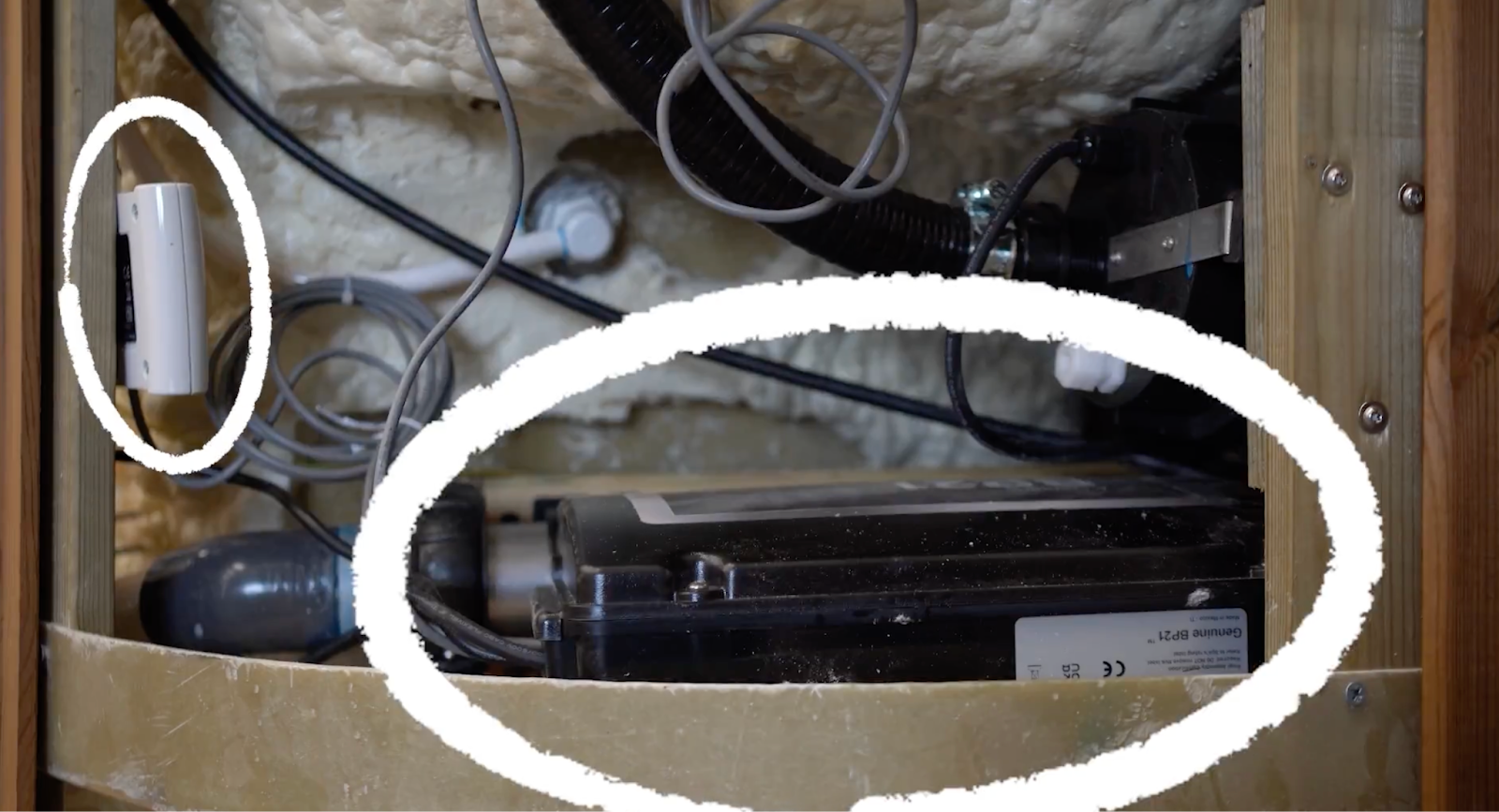
Step 8. Connect the cable to the module
- Connect the cable to the WiFi/gateway ULTRA module
- Make sure everything is firmly attached
- Turn the power back on
Step 9. Check
Check that the module is working properly via the LED indicator:
- Blinking or burning light indicates the status
LED status overview
This overview applies to the GATEWAY ULTRA modules in the home and near the hot tub.
🔴 Red, continuous
The GATEWAY ULTRA and the hot tub are not connected.
🔴 Red, blinking
The GATEWAY ULTRA modules in the home and near the hot tub are connected, but there is no connection to the hot tub controller.
🔵 Blue, blinking
A software update is in progress. Don't unplug it.
🟢 Green, blinking
The RF connection between the CMS GATEWAY ULTRA hot tub and the home unit is active, but there is no Internet connection.
🟢 Green, continuous
The hot tub is successfully connected to the internet. There are no errors.
3. Place the system in the home
Step 1

Connect the included Ethernet cable to the router in the home (A).
Step 2
Connect the other end of the ethernet cable to the GATEWAY ULTRA module (B).
Step 3
Connect the supplied power cable to the GATEWAY ULTRA module (C).
Step 4
Plug the other end of the power cable into the power outlet (D).
LED Status Overview (E)
This overview applies to the GATEWAY ULTRA modules in the home and near the hot tub.
🔴 Red, continuous
The GATEWAY ULTRA and the hot tub are not connected.
🔴 Red, blinking
The GATEWAY ULTRA modules in the home and near the hot tub are connected, but there is no connection to the hot tub controller.
🔵 Blue, blinking
A software update is in progress. Don't unplug it.
🟢 Green, blinking
The RF connection between the CMS GATEWAY ULTRA hot tub and the home unit is active, but there is no Internet connection.
🟢 Green, continuous
The hot tub is successfully connected to the internet. There are no errors.
4. Install and use the app
- Go to the app store and download the app
For iPhone or iPad (iOS/Apple)
Search the Apple App Store for “controlmyspa” or use this link: https://goo.gl/j31t1V
For Android phones and tablets
Search the Google Play Store for “controlmyspa” or use this link: https://goo.gl/CG4Yci
- Enter the CMS code (it's on the box):
Netherlands: WVX-94476
Belgium: WVX-91703
Germany: WVX-35449
France: WVX-76623
Other countries: WVX-70613
Please note: When the hot tub is switched on for the first time (after the CMS has been connected), you have 20 minutes to download the app and pair the module. If you do this after those 20 minutes, it is important to switch off the electric heater and leave it off for about one minute. After that, you can switch the heater back on and start pairing again. You will then have another 20 minutes.
See the instructions for installing the app here.
Here you will find the manual with installation instructions from Balboa itself.